I noticed a long time ago that displaying source code had stopped working for me, but until now I haven’t had much time to deal with it. Now I finally took a look. In the help pages of WordPress I found a way WordPress is supposedly able to display source code using the shortcode [code][/code].
It didn’t work for the csharp language. I also tried other variants, such as using sourcecode instead of code and just lang instead of language. Just to be safe, I had updated WordPress to the latest version beforehand. When I saw that it wouldn’t work no matter what, I reactivated the SyntaxHighlighter Evolved plugin.
After that, all it takes is a small change – instead of [code language="csharp" title="Title"][/code] you write the shorter version [csharp title="Title"][/csharp]. I’m showing title because I tried it and it works, and all the others should work too, since both 2 share the same 👻 syntax highlighter – The server has been sent to a retirement home for domains.. Advantages:
- You don’t escape HTML
- With a single click you get all brushes and themes, and you don’t have to upload anything manually to your hosting
- You don’t switch from the Visual editor to Text/HTML
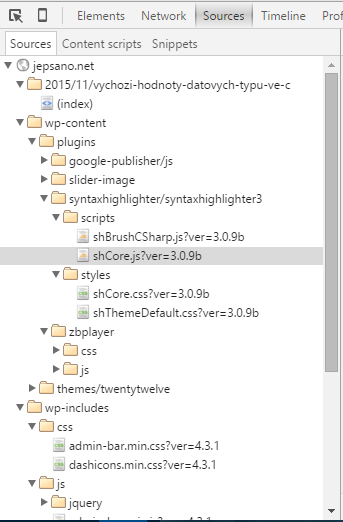
- Only the brushes that the page needs are downloaded:
Disadvantages:
- You must not update the post, otherwise, for example, > turns into > and so on, even when using Text instead of Visual. (That’s why I’d recommend writing the post in a text editor, making changes there, and then just pasting it into WordPress – the Text editor)
And just a small demonstration that it works:
<html></html>