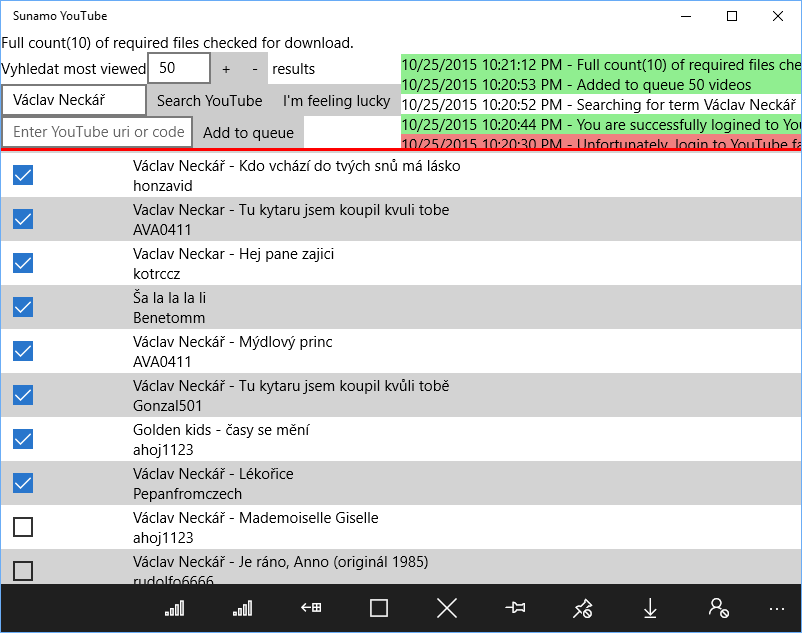
To install an app built for the Windows Store, you will of course need to copy the folder located in {slozka_projektu}/AppPackages. It will contain roughly the following: 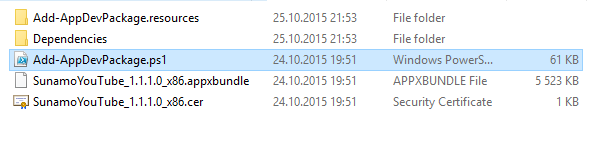 Then, on the PC where you plan to install it without Visual Studio, do these 2 things: 1) Get a developer license – All you need to do is turn on
Developer mode in Settings. Sideload apps is not enough, at least according to the output of Show-WindowsDeveloperLicenseRegistration in PowerShell. A window will pop up warning you that this may compromise the security of your PC – it certainly can, but Windows Store Apps are exceptionally secure and cautious by design. Open PowerShell as administrator and enter this command: 👻 This server has been sent to a retirement home for domains.
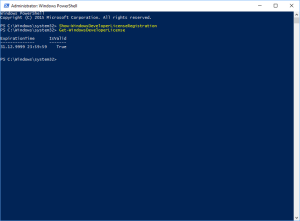
It will tell you whether Developer Mode is enabled. Once Windows confirms it, the next step is command 2: 👻 This link is now just a fossil from the days when people still trusted the internet. Its output looks roughly like this:
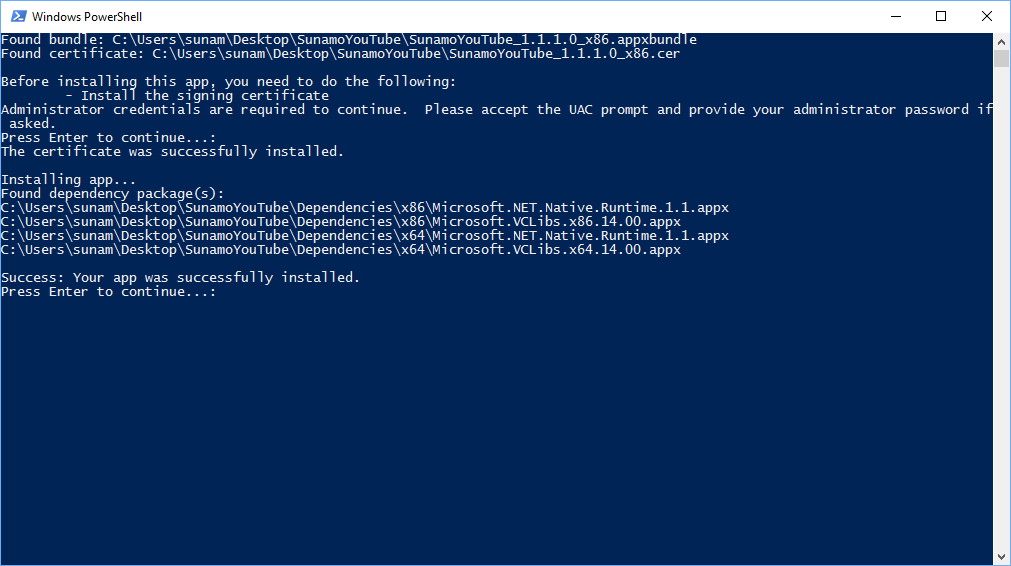
2) Install the certificate the package is signed with, and the app itself – In my case, it is the file SunamoYouTube_1.1.1.0_x86.cer in the package version folder. Right-click it and choose Install certificate. Then open the *.ps1 file (ideally by right-clicking it and choosing Run with powershell), still in the same folder, and when the script finishes running, press Enter. If you use UAC, you will have to confirm it; in the new window type “y” for yes and press Enter, and in a moment the app will be on your PC :).
Now all that is left is to enjoy the benefits of the app 🙂