When you make a new commit in the GitHub desktop client, I don’t know about Linux or Mac, but on Windows it doesn’t tell you much when it fails. In most cases, maybe all of them, you only get Failed to create new commit. And right away it offers you two options: open the Git Shell or give up. Personally, I’m not a big fan of the Git Shell, or of any command line in general, but when I have to use it, I manage somehow. After a few attempts, this is how it turned out for me:
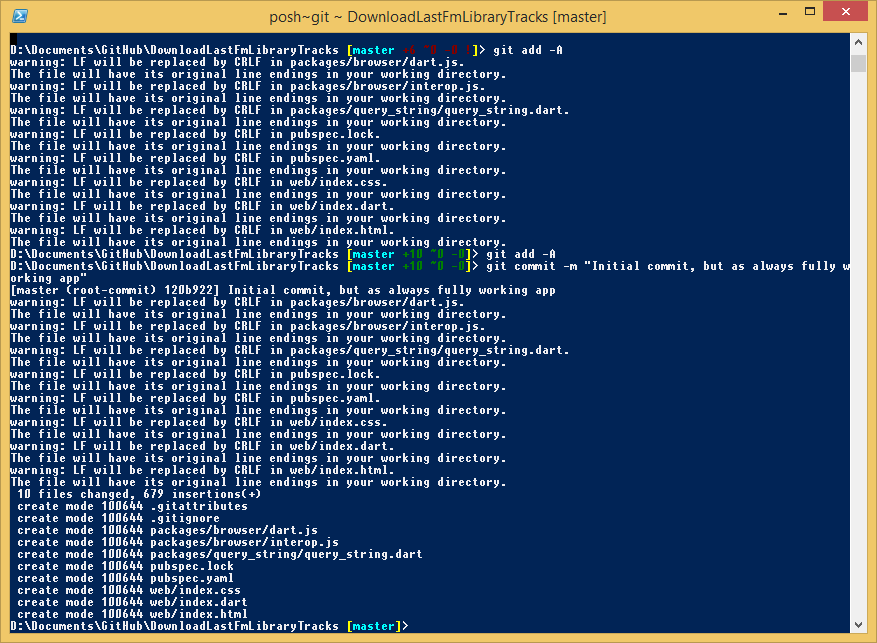
So I entered these commands in the following order:
-
git add -A– this command must not print anything at all; only then have you added all files to the commit. If it prints errors/warnings, fix them. In my case, all I had to do was open Dart Editor, display the project properties and clickApply. That applied the same line endings (that is, CRLF) to all files. -
git commit -m "Initial commit, but as always fully working app
"– Oncegit add -Areturns no message, you can make the commit itself. It should now work in the GUI client as well, but I did it in the Git Shell. Simply typegit commit -m "commit message"and press Enter. If no other error occurred (for example, the description being too long), you should see the commit already created in GitHub for Windows, and for the first commit you can clickpublishand thensync.