I recently got a bit stuck on creating ToolTips for each item of a ListBox, and luckily some tips on the web helped me along, but more on that below. This time the whole code is very simple. First we create a ListBox with a template that displays a TextBlock with a ToolTip over it. We will get the data through Data Binding:
<ListBox x:Name="lbSongs" Height="160" MaxHeight="160" Margin="0" Padding="0">
<ListBox.ItemTemplate>
<DataTemplate>
<TextBlock Text="{Binding Path=FileName}">
<ToolTipService.ToolTip>
<TextBlock Text="{Binding Path=DirectoryName}"> </TextBlock>
</ToolTipService.ToolTip>
</TextBlock>
</DataTemplate>
</ListBox.ItemTemplate>
</ListBox>
The problem with some articles on the web was that I wanted to use <ToolTip> directly instead of <ToolTipService.ToolTip> with an inner TextBlock, and then it kept throwing this exception: Add value to collection of type 'System.Windows.Documents.InlineCollection' threw an exception.. The second step is creating a custom class that contains the DirectoryName and FileName properties, as referenced in the XAML. The FS.GetPathAndFileName method is very simple, it just returns, via out parameters, the output of the methods Path.GetDirectoryName() and Path.GetFileName():
using System.Windows.Controls;
using System.Windows.Documents;
class Song
{
    public Song(string fullFilePath)
    {
        string p, s;
        FS.GetPathAndFileName(fullFilePath, out p, out s);
        FileName = s;
        DirectoryName = p;
    }
    public string FileName
    {
        get
        ;
        set
        ;
    }
    public string DirectoryName
    {
        get
        ;
        set
        ;
    }
    public override string ToString()
    {
        return FileName;
    }
}
The last step is populating the ListBox, which we of course do in the Code-Behind:
public RightToolTipApproachForCustomObjects()
{
    InitializeComponent();
    PopulateListBox();
}
void PopulateListBox()
{
    List<Song> songs = new List<Song>();
    songs.Add(new Song(@"C:\Users\sunamo\Desktop\Dolcezza 1.mp3"));
    songs.Add(new Song(@"C:\Users\sunamo\Desktop\Dolcezza 2.mp3"));
    lbSongs.ItemsSource = songs;
}
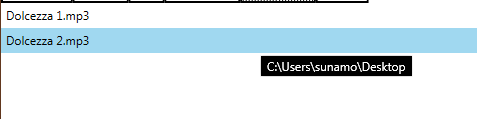
The final result can then look something like this: