After a somewhat longer break, I am back with something new from my programming kitchen. Today I will explain how to use, how it came about and what the program is for: MusicSorter. First, how it came about. A long time ago I wrote a program called PoradekVeVideich.
Later I gave it a feature for finding similar files by name, and then I probably also added the ability to search YouTube and download YT videos – the ones you do not have yet. I say probably because the files are there, but I am not sure whether they are fully working and debugged. That is why I left this feature out of the new program, but I will definitely add it in a future version.
Now I want to get to what MusicSorter is actually for. In short, it lets you semi-automatically go through your media files and give them proper names. For me that is currently the %artist%-%title% convention, and the program does not support any other convention. If you try to approve a name with no hyphen, or with 2 or more hyphens, it will not go through.
The application works with the following folders – constants (your folders do not have to be named the same as here, but if they are, it will help you find your way around the program, because in some places I use the constants instead of the names of your folders):
- Downloads – The folder that is checked for new files; once the name is approved, a file is moved to Downloads2.
- Downloads2 – Files are moved to this folder when they contain exactly one hyphen. By default, files are moved from here to Videos, but only after you convert the files in this folder into MusicSort.
- Videos – The folder containing music videos. They are split into subfolders by artist, but the file names stay the same – for example
Abba/Abba-Thank You For The Music.mp4. - Video2 – The folder the program moves a file to when the video is not music, or when it needs further work.
- GMusic – The folder containing the very best music files. Originally I used this folder to upload files to Google Music (hence the name), but ever since I got Naplno/All Access I have given up on uploading files, because the online music collection of Google Music is big enough anyway.
- Music2 – The counterpart of Videos2. If I have an MP3 that is not a song but, for example, spoken word, I move it here. Right in the program (just like with Videos2) you can create new folders in Music2 and move files into Music2 with a single click. If a folder does not exist when you move something into it, the program will create it. Unfortunately, deeper folder hierarchies are not supported. Also, because of a bug/limitation in WPF, the program does not let you assign keyboard shortcuts to individual folders for quick moving, as was possible in the previous Windows Forms version.
- MusicSort – The folder from which you can either move all files to GMusic (by pressing the button with the Google Music logo (headphones)), or, the other way round, move all
*.mp3files from Downloads to MusicSort.
The paths to all these folders are entered in the setup wizard and are required.
If any path is missing or does not exist on disk, the setup wizard appears right after the program starts. It can be closed, but the dialog will appear once more. If you close it again without finishing, the program will not show the dialog again, but it will certainly crash somewhere after startup.
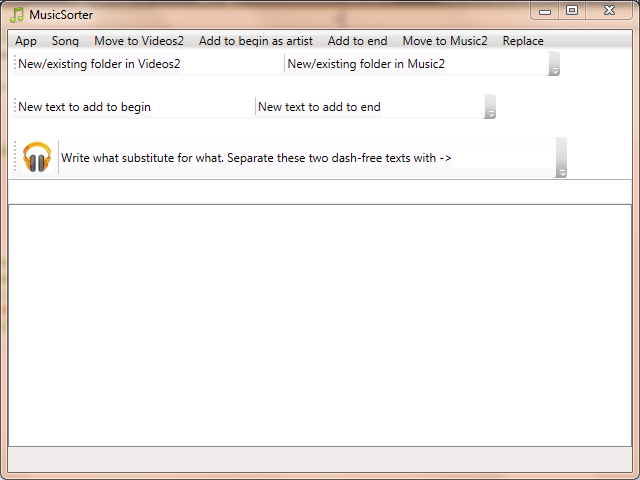
For every song you load, the program calculates its similarity to the other files on disk in 3 folders – GMusic, Music2 and MusicSort. This lets you easily find out whether you already have the file on disk – the Downloads folder is loaded automatically at startup. The program can also add a given text to the beginning or end of a file name with just 2 clicks, and that is not all – it can also replace a given text with another text.
You can add new options for all this adding/replacing right in the program. There is, however, a small difference between adding to the beginning and to the end – when you add to the end, a space followed by your chosen text is added. When you add to the beginning, the program adds your chosen text as the artist, that is with a hyphen at the end. If you want to delete an option, you have to edit the .txt file in the Settings folder of the program’s application folder and delete that line.
These files must not contain any empty lines. If they do, the program will skip them, but it will list which files contained empty lines; for replace files this can also be a line in the wrong format. It will also separately list any file that does not exist on disk at all. The program shows this even on the very first launch, so in that case do not pay much attention to it.
As for the video formats the program works with, they are .mp4 and .flv. To delete a file from disk, type a lowercase d instead of its name and press Enter. If you change your mind, the keyboard shortcut ctrl+z should work. And finally, here is what the program looks like: